AI can now do much more than add a simple blinking effect to a still photo. Depending on the tool you choose, you can turn a portrait into a talking avatar, create cinematic camera movements from a single image, restore old family photos with realistic motion, or even generate short films while keeping the same character consistent across multiple scenes.
The challenge is that there isn’t a single AI tool that’s best at everything.
Some platforms specialize in creating lifelike talking photos, while others focus on cinematic storytelling, 3D camera movement, or preserving character consistency across multiple shots. A tool that works brilliantly for social media content may not be the best choice for restoring vintage photographs or producing professional marketing videos.
That’s why this guide “Best AI Tools to Animate Photos to Videos” doesn’t rank tools from #1 to #10. Instead, it explains what each platform does best, where its limitations lie, and who it’s most suitable for. The goal is to help you choose the right tool for your specific project rather than simply recommending the most popular name.
Kling AI – Best for Cinematic Image-to-Video Generation
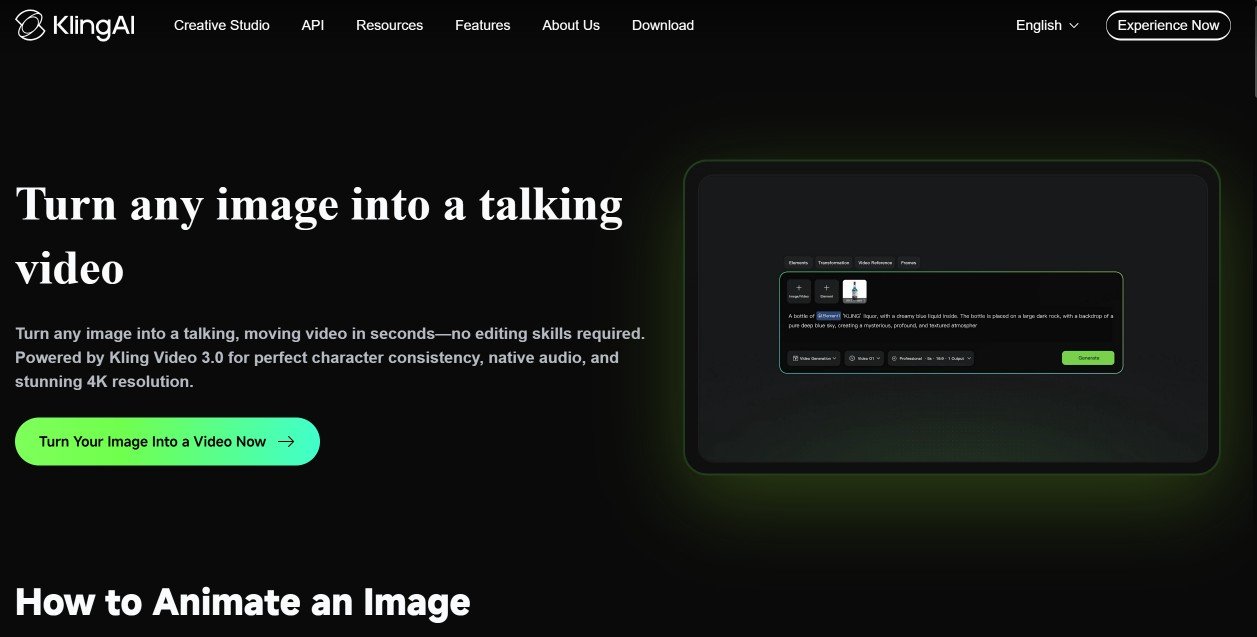
If your goal is to turn a still image into a cinematic video with realistic motion, Kling AI is one of the strongest options available today. Developed by Kuaishou, the platform has earned a reputation for producing smooth camera movements, natural-looking animations, and impressive visual quality that often rivals much more expensive tools.
One of Kling AI’s biggest strengths is its ability to follow detailed prompts. After uploading an image, you can describe how the scene should unfold—whether you want the subject to move, the camera to pan across the scene, or the environment to come to life. The generated videos generally feel more dynamic and cinematic than the simple zoom or parallax effects offered by many basic photo animation tools.
Another standout feature is character consistency. With Kling’s All-in-One Reference system, you can upload a short reference video or multiple images of the same person or object. The AI uses those references to maintain a consistent appearance across different scenes, making it much easier to create a series of videos featuring the same character without noticeable distortions.
Kling also supports voice and lip-sync generation. Instead of only animating facial expressions, it can generate natural lip movements that match spoken audio while preserving the character’s identity. This makes it useful for storytelling, educational videos, marketing content, and virtual presenters.
For creators who want more control, Kling offers a Storyboard mode. Rather than generating a single continuous clip, you can define multiple shots, adjust camera angles, control timing, and build a more structured sequence. This gives experienced creators greater creative freedom and helps produce videos that feel closer to professionally edited films.
Another advantage is clip length. While many AI video generators still focus on very short animations, Kling can generate clips of up to 15 seconds in a single generation, giving you more room to tell a complete visual story before moving on to editing.
That said, Kling isn’t the perfect solution for every project. Like most advanced AI video generators, it has a learning curve, and achieving the best results often requires carefully written prompts and a bit of experimentation. The free plan is also limited, so creators who generate videos regularly will likely need a paid subscription.
✔ Pros
- Excellent cinematic image-to-video quality
- Realistic camera movements and motion
- Strong character consistency across multiple scenes
- Supports voice generation and accurate lip-sync
- Storyboard mode offers greater creative control
- Generates longer clips than many competitors
✘ Cons
- Requires good prompts for the best results
- Free plan has usage limitations
- Advanced features may feel overwhelming for beginners
Hedra – Best for Talking Photos and AI Avatars
If your goal is to create a realistic talking photo rather than a cinematic animation, Hedra is one of the best AI tools available. Instead of focusing on dramatic camera movements or visual effects, Hedra specializes in turning a single image into a lifelike speaking character.
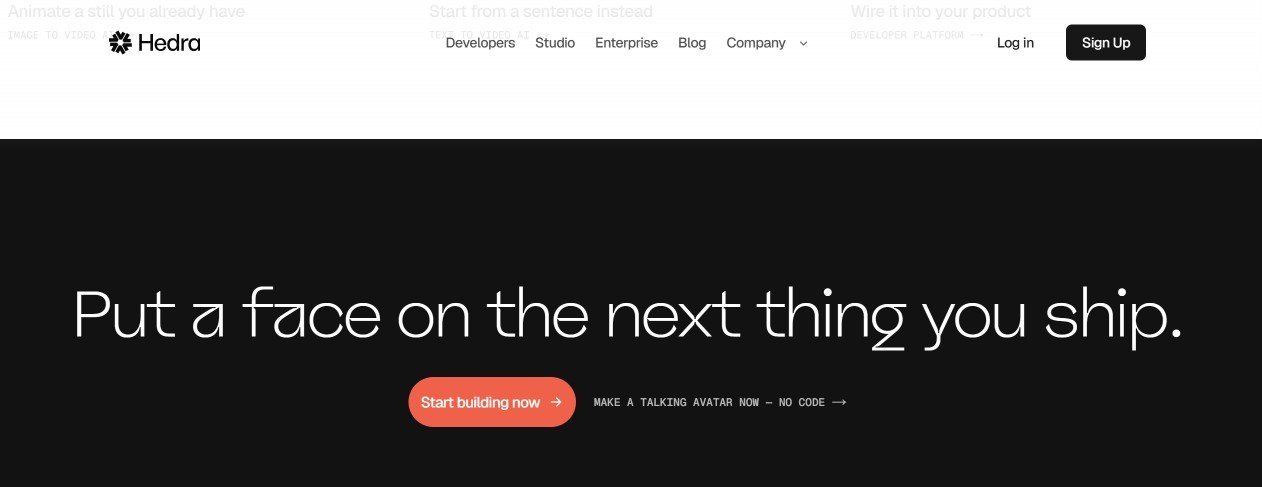
Its latest character generation model, Omnia, can animate facial expressions, eye movements, and subtle head motions while synchronizing the character’s lips with your voice or script. Simply upload a portrait, record or upload an audio file, and Hedra generates a video that looks as if the person is naturally speaking.
One of Hedra’s biggest advantages is the length of its generated videos. While many AI image-to-video tools are limited to clips lasting only a few seconds, Hedra can create talking videos that are up to 10 minutes long. This makes it a practical option for educational content, presentations, training materials, AI news anchors, virtual assistants, and faceless YouTube channels.
Hedra can create talking videos that are up to 10 minutes long — far beyond the few-second clips most image-to-video tools produce.
Another strength is its growing AI ecosystem. Beyond image-to-video animation, Hedra also includes features such as text-to-video, voice cloning, and AI-powered character creation. If you regularly create AI-generated content, having these tools within the same platform can simplify your workflow.
That said, Hedra isn’t designed for cinematic storytelling. It excels at realistic conversations and presentations but doesn’t offer the same level of creative camera control, scene transitions, or movie-style animations found in tools like Kling AI or Google Veo. If your project requires dynamic action scenes or complex visual storytelling, you’ll likely find those platforms more suitable.
Overall, Hedra is ideal for creators who want to produce professional talking avatars quickly without needing expensive cameras, actors, or video editing skills.
✔ Pros
- Excellent lip-sync and natural facial animation
- Generates talking videos up to 10 minutes long
- Supports voice cloning and AI character creation
- Simple workflow that’s beginner-friendly
- Well suited for educational and business content
✘ Cons
- Limited cinematic camera movement
- Not designed for action-heavy or movie-style videos
- Best results depend on using a clear, high-quality portrait
MyHeritage Deep Nostalgia – Best for Bringing Old Family Photos to Life
Unlike most AI image-to-video tools that focus on content creation, MyHeritage Deep Nostalgia is designed to help people reconnect with old memories. If you have vintage family photos tucked away in an album or scanned from old prints, this tool can animate them with subtle, realistic movements that make them feel alive again.
Deep Nostalgia became popular for its ability to animate facial expressions naturally. A still portrait can blink, smile, turn its head slightly, or make gentle eye movements, creating the impression that the person is briefly coming to life. The animations are intentionally subtle, which helps preserve the authenticity of historical and family photographs.
Before generating the animation, MyHeritage can also enhance old images by improving sharpness, reducing blur, and restoring faded details. While these enhancements often produce impressive results, the final animation still depends heavily on the quality of the original photo. Images that are severely damaged, extremely blurry, or missing important facial details may not animate as convincingly.
In addition to Deep Nostalgia, MyHeritage has introduced LiveMemory, a more advanced feature that goes beyond simple facial animation. Instead of animating only the face, it can generate more natural full-body movements and add realistic motion to people or even pets in certain photos, making old memories feel even more immersive.
Compared with cinematic tools like Kling AI or Google Veo, MyHeritage offers far fewer creative controls. You can’t direct camera movements, generate complex scenes, or create long storytelling videos. Instead, it focuses on preserving emotional moments through simple and believable animations.
For anyone looking to surprise family members, preserve family history, or breathe new life into treasured photographs, MyHeritage remains one of the most accessible and enjoyable options available.
✔ Pros
- Excellent for animating old family photos
- Natural-looking facial expressions and subtle movements
- Built-in photo enhancement improves many old images
- LiveMemory adds more realistic motion to selected photos
- Easy to use with little learning required
✘ Cons
- Limited creative control compared with cinematic AI video generators
- Animation quality depends on the condition of the original photo
- Not intended for professional filmmaking or marketing videos
Filmora AI Image to Video – Best for Beginners Who Want an All-in-One Editor
If you’re looking for more than just an AI photo animation tool, Filmora AI Image to Video is worth considering. While many AI platforms stop after generating a short clip, Filmora lets you continue editing your project using its built-in video editor. This makes it a convenient choice for beginners and content creators who want to create a finished video without switching between multiple applications.
Getting started is straightforward. Upload a photo, describe the animation you want, and Filmora uses AI to generate a short video by interpreting your prompt. It can animate facial expressions, body movements, and background elements to create a more dynamic scene from a still image.
One of Filmora’s biggest strengths is its collection of ready-made AI templates. Whether you want to bring an old photo back to life, colorize a black-and-white image, create a nostalgic slideshow, or produce a short story from multiple photos, the templates help you achieve professional-looking results with minimal effort.
Where Filmora really stands out is after the AI generation is complete. Instead of downloading the clip and editing it elsewhere, you can continue working in the same project. The software includes a full suite of editing tools, allowing you to trim clips, add transitions, insert text, apply visual effects, include background music, record voiceovers, and combine multiple images or videos into a polished final production.
This all-in-one workflow is especially useful for YouTubers, educators, marketers, and social media creators who regularly produce short-form content. Rather than relying on separate AI generators and editing software, Filmora combines both into a single, beginner-friendly platform.
That said, Filmora’s AI animation quality may not always match the cinematic realism of specialized generators such as Kling AI, Google Veo, or Luma AI. Its primary strength is convenience rather than pushing the limits of AI video generation.
✔ Pros
- Beginner-friendly interface with a simple workflow
- Built-in AI templates for different creative styles
- Full video editing suite included
- Available on both desktop and mobile
- No need to switch between multiple editing tools
✘ Cons
- AI animation quality isn’t as advanced as dedicated cinematic generators
- Some premium AI features require a paid subscription
- Advanced creators may find the customization options more limited than specialized AI platforms
Luma AI – Best for Cinematic Motion and Creative Image Animation

If you want to turn a still image into something that feels like a real camera shot, Luma AI is worth considering. Its video-generation tools are particularly good at adding camera movement, environmental motion, and cinematic atmosphere without making the original image feel completely disconnected from the final video.
Luma’s image-to-video workflow lets you upload a still image and describe how you want the scene to move. You can ask the camera to push in, pull back, pan across a subject, or follow an action within the scene. You can also use a start image and an end image to generate a transition between two visual states, which gives you more control over how the shot develops.
One of Luma’s strengths is its flexibility. You’re not restricted to photographs of people. You can animate illustrations, concept art, product images, game artwork, landscapes, and other visual styles. This makes it useful for creators who want to turn artwork or static designs into more dynamic social media content.
Luma also goes beyond basic image animation. Its current video tools support workflows such as video-to-video transformation, video extension, reframing, lip-sync, and other modifications. That means you can use it as part of a larger creative workflow rather than simply generating one short clip and exporting it.
However, Luma isn’t necessarily the easiest option for beginners who simply want a photo to move. Its broader collection of controls and workflows can take some experimentation to understand. And like other AI video generators, the result can sometimes differ from the source image more than you’d expect, particularly when the prompt asks for substantial movement.
Overall, Luma is a strong choice when cinematic movement and creative control matter more than having the simplest possible workflow.
✔ Pros
- Strong cinematic camera movement
- Good for photographs, artwork, products, and imaginative visuals
- Supports image-to-video and keyframe-based workflows
- Offers additional video transformation and extension tools
- Useful for creators who want more control over the final shot
✘ Cons
- Can require experimentation to get precise results
- Complex workflows may be less comfortable for beginners
- Significant motion can sometimes change details from the original image
Hailuo AI – Best for Quick AI Video Experiments
Hailuo AI, developed by MiniMax, is another strong option for turning still images into short AI-generated video clips. Its appeal is fairly simple: you can start with an image, describe the movement you want, and let the model handle the animation.
One area where Hailuo can be particularly useful is camera movement. Depending on the model and workflow available to you, you can guide the shot with instructions such as zooming in, pulling away, or moving the camera around the subject. This can turn an otherwise static photograph into a much more engaging clip.
Hailuo is also useful when you don’t need a complicated filmmaking workflow. If you’re creating a quick social media post, experimenting with an illustration, or testing different ways to animate a product image, the relatively straightforward generation process can save time.
However, I wouldn’t choose Hailuo solely because it can generate a video from an image. Many competing platforms now offer similar functionality, and the difference comes down to motion quality, consistency, prompt following, and how much control you need.
In my view, Hailuo makes the most sense as a quick experimentation tool. It’s worth trying when you want to see how an image behaves when animated, but for highly controlled cinematic productions, I would look more closely at Kling, Luma, Veo, or Runway.
Another consideration is the free tier and its limitations. Free access can be useful for testing the platform, but restrictions such as watermarks or limited generation capacity can make it less practical for regular production.
✔ Pros
- Simple image-to-video workflow
- Good for experimenting with different types of motion
- Useful camera-control options
- Suitable for short social media clips
- Accessible way to experiment with AI video generation
✘ Cons
- Results can vary between generations
- Less suitable when you need precise production control
- Free usage may include limitations such as watermarks or generation restrictions
Immersity AI – Best for 3D and Immersive Photo Animation
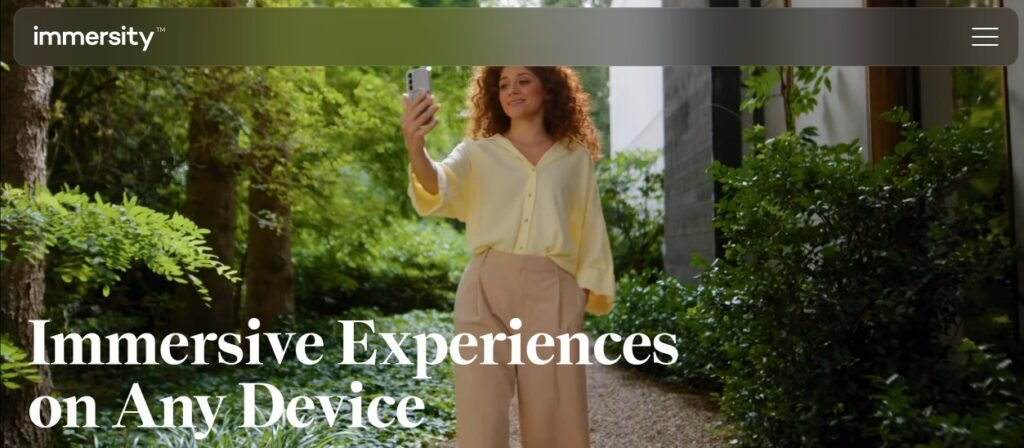
If you’re looking for something different from traditional AI image-to-video generation, Immersity AI takes an interesting approach. Formerly known as LeiaPix, the platform focuses on creating depth and immersive motion from ordinary 2D images.
Instead of asking an AI model to invent a completely new sequence of events, Immersity analyzes the image and creates a sense of depth between foreground and background elements. The result can make a flat photograph feel more three-dimensional as the virtual camera moves through the scene.
This makes Immersity particularly interesting for 3D-style presentations, product visuals, artwork, real-estate imagery, and immersive experiences. It can also create outputs designed for certain 3D and spatial viewing formats.
The platform currently offers features including Immersive Motion, 3D Image, 3D Video, and Depth Map generation. Its paid plans support higher-resolution outputs and commercial use, while the free option is limited to watermarked, non-commercial exports.
Pricing is also relatively straightforward compared with many credit-heavy AI video platforms. The current web pricing starts at $4.99 per month for the Image plan, while higher tiers are available for users who need more conversion credits or video capabilities.
The important distinction is that Immersity isn’t really competing with Kling or Veo on the same playing field. Those tools attempt to generate new motion and events. Immersity is primarily about creating depth and immersive movement from existing visual information.
That can be an advantage when preserving the original photograph is more important than generating a completely new scene.
✔ Pros
- Excellent for 2D-to-3D and depth-based animation
- Creates immersive camera movement from still images
- Supports 3D images, videos, and depth maps
- Useful for spatial and immersive experiences
- Relatively affordable entry-level paid plan
✘ Cons
- Not designed for conventional cinematic AI video generation
- Less suitable when you want characters to perform complex actions
- Free exports are watermarked and restricted to non-commercial use
Google Veo 3.1 – Best for High-End AI Video With Native Audio
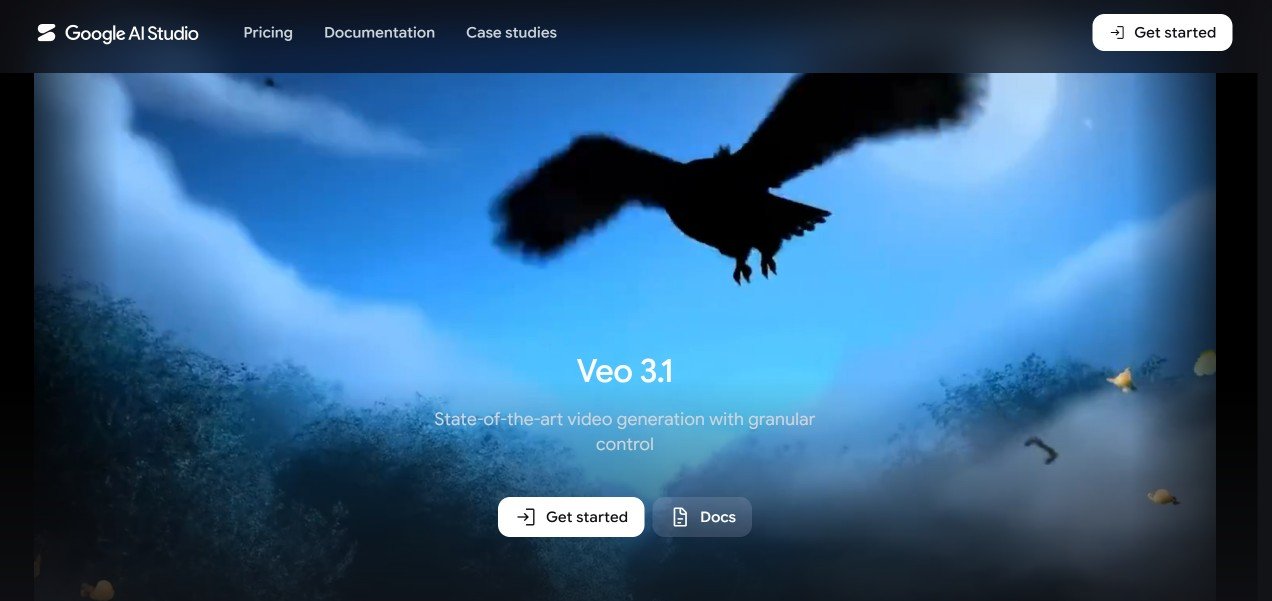
If your goal is to create a complete cinematic scene rather than simply make a photograph move, Google Veo 3.1 belongs near the top of your shortlist. It’s designed for more sophisticated AI video generation, including image-to-video workflows, and one of its biggest differentiators is its ability to generate synchronized audio alongside the visuals.
That matters because traditional image-to-video tools often give you a silent video that you have to finish elsewhere. With Veo, the generated scene can include elements such as dialogue, ambient sounds, and other audio that correspond to what’s happening on screen.
With Veo, the generated scene can include dialogue, ambient sounds, and other audio that correspond to what’s happening on screen — no silent clip to finish elsewhere.
You can also use reference images to help guide the appearance of people, objects, or other elements in a scene. This is particularly useful when you want the generated video to remain visually connected to your source material.
Another useful capability is video extension. Rather than treating every generation as an isolated clip, Veo can extend compatible Veo-generated videos to continue the sequence. This gives creators more flexibility when building longer scenes.
However, there’s an important limitation: AI-generated video still isn’t equivalent to traditional filmmaking. Even with a powerful model, characters, objects, or backgrounds can occasionally behave in unexpected ways. More complicated scenes may also require several attempts before you get a usable result.
Cost is another consideration. High-end AI video generation can become expensive when you’re producing many iterations, especially when you are working at higher quality or generating multiple versions of the same shot.
For creators who prioritize visual quality, cinematic storytelling, and integrated audio, however, Veo 3.1 is one of the most compelling options in this category.
✔ Pros
- High-quality cinematic video generation
- Native synchronized audio
- Supports image-based generation and reference images
- Useful for storytelling and filmmaking
- Video-extension workflows can help create longer sequences
✘ Cons
- Higher-quality generations can become expensive
- Complex scenes may require multiple attempts
- More advanced controls can be intimidating for beginners
Runway Gen-4.5 – Best for a Complete AI Video Workflow
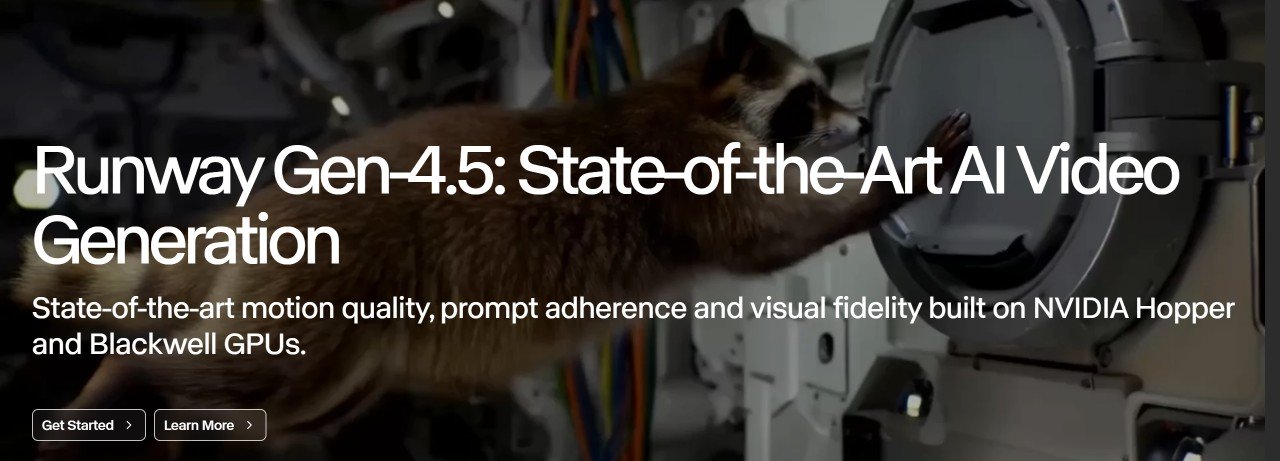
Runway Gen-4.5 is slightly different from the other tools on this list because Runway isn’t just an image-to-video generator. It has evolved into a broader creative platform that combines AI video generation with image generation, editing, audio tools, and other production features.
Gen-4.5 is Runway’s flagship video-generation model and is designed around strong visual fidelity, motion quality, prompt adherence, and control. Runway says the model supports a range of generation workflows, including image-to-video and other forms of video creation.
For someone creating a video from a still image, this means you can start with your source image, generate motion, and then continue working on the result within the same ecosystem rather than immediately moving to another application.
Runway’s Aleph tools also make the platform particularly interesting for post-generation editing. Instead of regenerating an entire video when you want to change something, you can use AI-assisted editing workflows to modify elements of the footage.
That’s a major advantage for creators who think of AI as part of the editing process rather than simply a button that generates a finished video.
The downside is complexity. Runway offers a lot of tools, models, and settings, and beginners may need some time to understand how everything fits together. Its credit-based system also means that repeated experimentation can consume credits quickly.
Runway currently offers a free plan with 125 one-time credits, while its Standard plan starts at $12/month when billed annually and includes access to Gen-4.5 and other models. Paid plans also remove watermarks.
One particularly interesting development is that Runway now provides access to multiple AI models within its platform, including models from other companies. That makes Runway less like a single AI video generator and more like a centralized AI filmmaking workspace.
✔ Pros
- High-quality Gen-4.5 video generation
- Strong motion and prompt adherence
- Image-to-video and other creative workflows
- AI-assisted video editing
- Multiple AI models available within one platform
- Useful for more complete production workflows
✘ Cons
- Interface can feel complicated for beginners
- Credit consumption can become significant with frequent experimentation
- More features aren’t necessarily useful if you only want simple photo animation
Best AI Tools to Animate Photos to Videos Compared
| Tool | Best for | Biggest strength | Main limitation |
|---|---|---|---|
| Kling AI | Cinematic animation | Character consistency and cinematic motion | Can require prompt experimentation |
| Hedra | Talking photos | Lip-sync and talking characters | Not designed for cinematic scenes |
| MyHeritage | Old family photos | Bringing historical portraits to life | Limited creative control |
| Filmora | Beginners | AI generation + video editing | Animation isn’t its only focus |
| Luma AI | Creative animation | Camera movement and cinematic visuals | Can take experimentation |
| Hailuo AI | Quick experiments | Accessible short-form generation | Less production control |
| Immersity AI | 3D/immersive photos | Depth and 3D-style motion | Not a conventional video generator |
| Veo 3.1 | Cinematic production | Video with native audio | Can become expensive |
| Runway Gen-4.5 | Complete workflows | Generation + editing ecosystem | More complex for beginners |
Which AI Photo Animation Tool Should You Choose?
There isn’t one universal winner. Your choice should depend on what you want the final video to look like.
If you want cinematic animation from a photograph, start with Kling AI or Luma AI. Kling is particularly appealing when character consistency matters, while Luma gives you a broad set of creative video workflows.
If you want a talking photograph or AI presenter, Hedra makes more sense. Its focus on facial animation and lip-sync makes it a better fit than a general-purpose cinematic generator.
For old family photographs, MyHeritage Deep Nostalgia is the obvious choice. It isn’t trying to compete with cinematic video generators; its purpose is much more specific.
If you want to animate a photo and then edit the finished video, Filmora is convenient because generation and conventional video editing are available within the same workflow.
For 3D or immersive photo experiences, choose Immersity AI. Its depth-based approach is fundamentally different from conventional image-to-video generation.
If you’re looking for high-end cinematic scenes with synchronized audio, Google Veo 3.1 is one of the strongest choices.
And if you want a broader AI filmmaking workspace rather than a single-purpose image animator, Runway is particularly compelling because it combines generation, editing, and access to multiple models in one platform.
Frequently Asked Questions
Can AI really turn a photo into a video?
Yes. Modern AI video generators can analyze a still image and generate movement based on the image and your instructions. Depending on the tool, that movement can include facial expressions, body motion, camera movement, environmental effects, or entirely new actions. The quality varies considerably, though. A simple portrait is usually easier to animate convincingly than a complicated scene containing several people, objects, and interactions.
What is the best AI tool to animate a photo?
There isn’t one answer for everyone. Kling AI is a strong choice for cinematic image-to-video generation, Hedra is better for talking portraits, MyHeritage is better for old family photographs, and Immersity AI is better if you specifically want a 3D or depth-based effect.
Can I animate an old photograph with AI?
Yes. Tools such as MyHeritage are specifically designed for this purpose. The quality of the original photograph still matters, however. A clear, well-preserved portrait generally gives the AI more information to work with than a heavily damaged or extremely blurry image.
Can AI make a person in a photo talk?
Yes. Talking-photo tools can animate facial expressions and synchronize lip movements with supplied speech or audio. Hedra is particularly focused on this type of content.
Can AI animate the whole scene instead of just the person’s face?
Yes. General-purpose image-to-video models such as Kling, Luma, Veo, and Runway can generate movement throughout a scene. The amount and type of movement you get depends on the source image, your prompt, and the specific model.
Is AI photo animation free?
Many platforms offer some form of free access, but free plans commonly have restrictions such as limited credits, watermarks, lower output limits, or restrictions on commercial use. These conditions change frequently, so check the current plan before relying on a free tier for professional work.
Can I use AI-animated photos commercially?
It depends on the platform and subscription you’re using. Don’t assume that a free generation automatically comes with commercial rights. For example, Immersity’s current free web plan is watermarked and non-commercial, while its paid plans include commercial use.
Final Verdict
AI photo animation has moved far beyond simple zoom and pan effects. Today’s tools can make portraits talk, generate cinematic camera movements, create depth from flat images, restore old memories, and even produce complete scenes with synchronized audio.
But the most important lesson from testing and comparing these platforms is that the “best” tool depends on the type of animation you want.
For cinematic image-to-video generation, Kling AI and Luma AI are strong choices. For talking portraits, Hedra is a better fit. For old family photographs, MyHeritage remains particularly useful. Filmora is convenient when you want to combine AI generation with traditional editing, while Immersity stands out for 3D and immersive effects.
For creators who want to push further into filmmaking, Veo 3.1 and Runway Gen-4.5 offer much broader creative possibilities. The trade-off is that they can also require more experimentation, more credits, and a greater understanding of AI video workflows.
So rather than asking “Which AI photo animation tool is the best?”, ask a more useful question:
“What do I want my photo to become?”
Once you answer that, choosing the right tool becomes much easier.